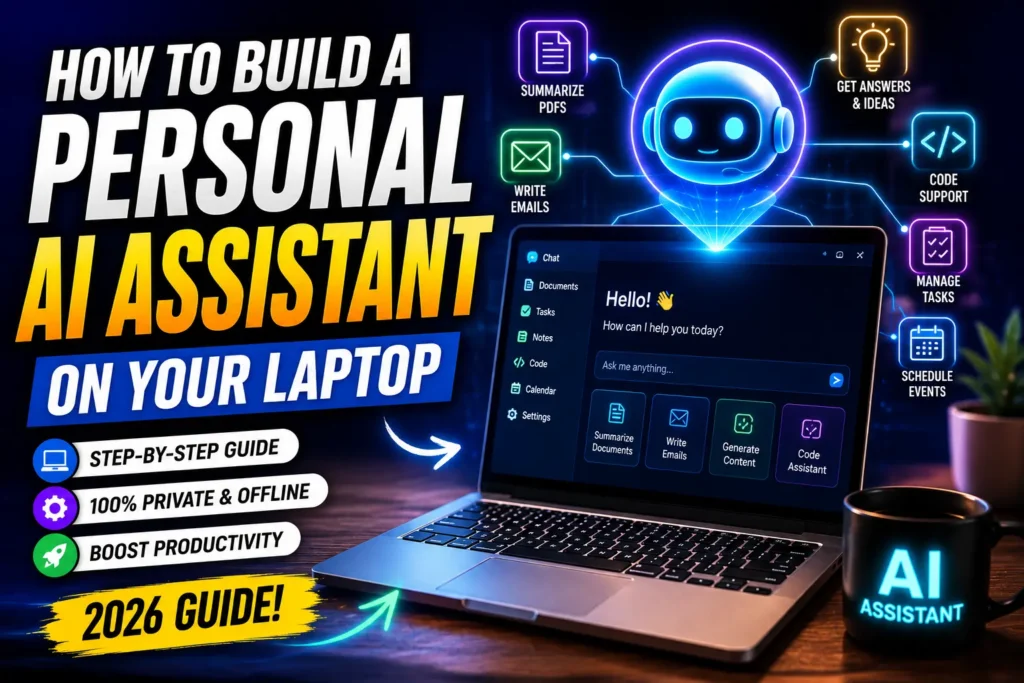
Artificial Intelligence has evolved from a cloud-based technology into something you can run directly on your own laptop. Whether you want an assistant that writes emails, summarizes documents, answers questions, generates code, or helps manage your daily tasks, building a personal AI assistant is now easier than ever.
In this guide, you’ll learn how to create your own AI assistant on a laptop, choose the right tools, and customize it to fit your workflow.
What Is a Personal AI Assistant?
A personal AI assistant is software powered by a large language model (LLM) that helps automate tasks and answer questions using natural language.
Depending on the setup, your assistant can:
- Answer questions
- Write blog posts
- Generate emails
- Summarize PDFs
- Help with programming
- Translate languages
- Create content ideas
- Manage daily tasks
- Analyze documents
- Brainstorm business ideas
Some assistants work entirely online, while others can run locally for improved privacy.
Why Build an AI Assistant on Your Laptop?
Running an AI assistant on your own computer offers several benefits:
- Better privacy and control over your data
- Faster access without switching between apps
- Offline capabilities (with supported local models)
- Custom workflows tailored to your needs
- Lower long-term costs for many use cases
- Greater flexibility for developers and power users
Step 1: Check Your Laptop Requirements
Before installing an AI assistant, make sure your laptop meets the basic requirements.
Minimum Requirements
- 8 GB RAM (16 GB recommended)
- Modern multi-core processor
- At least 20 GB of free storage
- Stable internet connection for cloud-based assistants
Recommended for Local AI Models
- 16–32 GB RAM
- Dedicated GPU (optional but helpful)
- SSD storage
- Recent operating system
Higher-end hardware generally provides faster responses when running local models.
Step 2: Choose Your AI Assistant Type
There are several ways to build a personal AI assistant.
Cloud-Based Assistant
Ideal for users who want the latest AI capabilities without managing hardware.
Benefits:
- Fast setup
- Powerful models
- Automatic updates
- Access from multiple devices
Local AI Assistant
Runs directly on your laptop.
Benefits:
- Better privacy
- Offline access (depending on the model)
- No recurring API costs for local inference
- Full control over your environment
Step 3: Select the Right AI Model
Choose a model based on your goals.
Common options include:
- General-purpose conversational models
- Coding-focused models
- Lightweight local models for laptops
- Multimodal models that understand text and images
Consider factors such as performance, hardware requirements, licensing, and language support.
Step 4: Install an AI Interface
A user-friendly interface makes interacting with your assistant easier.
Look for software that supports:
- Chat conversations
- Document uploads
- Prompt history
- Local model integration
- API connections
- Custom workflows
A clean interface improves productivity and simplifies daily use.
Step 5: Customize Your Assistant
Tailor the assistant to your specific needs.
Examples include:
- Blog writing
- Research assistance
- Coding support
- Meeting summaries
- Email drafting
- Learning and tutoring
- Business planning
- Personal productivity
- Data analysis
Create reusable prompts and workflows to save time.
Step 6: Connect Productivity Tools
Many AI assistants integrate with everyday applications.
Examples:
- Calendar
- Notes
- Documents
- Cloud storage
- Task management software
These integrations help automate repetitive tasks.
Step 7: Add Voice Capabilities
You can enhance your assistant with voice features such as:
- Voice commands
- Speech-to-text
- Text-to-speech
- Hands-free task management
Voice interaction creates a more natural user experience.
Step 8: Organize Your Knowledge
Improve your assistant by giving it access to your own information.
Examples:
- PDFs
- Notes
- Documentation
- Research papers
- Project files
- Knowledge bases
Organized information helps the assistant provide more relevant responses.
Step 9: Automate Daily Workflows
A personal AI assistant becomes even more useful when it automates repetitive tasks.
Examples:
- Draft emails
- Summarize articles
- Generate meeting notes
- Organize files
- Brainstorm content ideas
- Create social media captions
- Write code snippets
- Analyze spreadsheets
Automation increases efficiency and reduces manual work.
Step 10: Keep Security in Mind
When using AI, follow good security practices:
- Protect sensitive data
- Use strong passwords
- Enable two-factor authentication where available
- Keep software updated
- Review permissions for connected apps
If you’re using local models, ensure your files are backed up regularly.
Common Mistakes to Avoid
Avoid these common issues:
- Installing models too large for your hardware
- Ignoring data privacy
- Using vague prompts
- Expecting perfect responses without review
- Skipping software updates
- Connecting unnecessary services
Always verify important outputs before acting on them.
Best Use Cases
A personal AI assistant can help with:
- Content writing
- Software development
- SEO research
- Language translation
- Business planning
- Customer support drafts
- Education
- Study notes
- Project management
- Creative brainstorming
Frequently Asked Questions
Can I build an AI assistant on a regular laptop?
Yes. Many cloud-based assistants run well on standard laptops, while lightweight local models can also work on modern systems with sufficient RAM.
Can an AI assistant work offline?
Yes, if you use a compatible local model and supporting software. Cloud-based assistants generally require an internet connection.
Is coding required?
Not necessarily. Many tools provide graphical interfaces that let you install and use AI assistants without programming knowledge. Advanced customization may require some technical skills.
Is it safe to use a personal AI assistant?
It can be, provided you follow security best practices, avoid sharing sensitive information unnecessarily, and keep your software updated.
Final Thoughts
Building a personal AI assistant on your laptop is one of the most practical ways to improve productivity in 2026. Whether you choose a cloud-based solution or a local setup, the key is to configure your assistant around your daily tasks and workflows.
Start with a simple setup, experiment with prompts and integrations, and gradually expand its capabilities as your needs evolve. AI works best as a collaborative tool that enhances your productivity while keeping you in control.
For more guides on AI tools, automation, and productivity, explore https://aitrendshub.com